Chat
The Chat page (/chat) is the main interface for interacting with AI models.
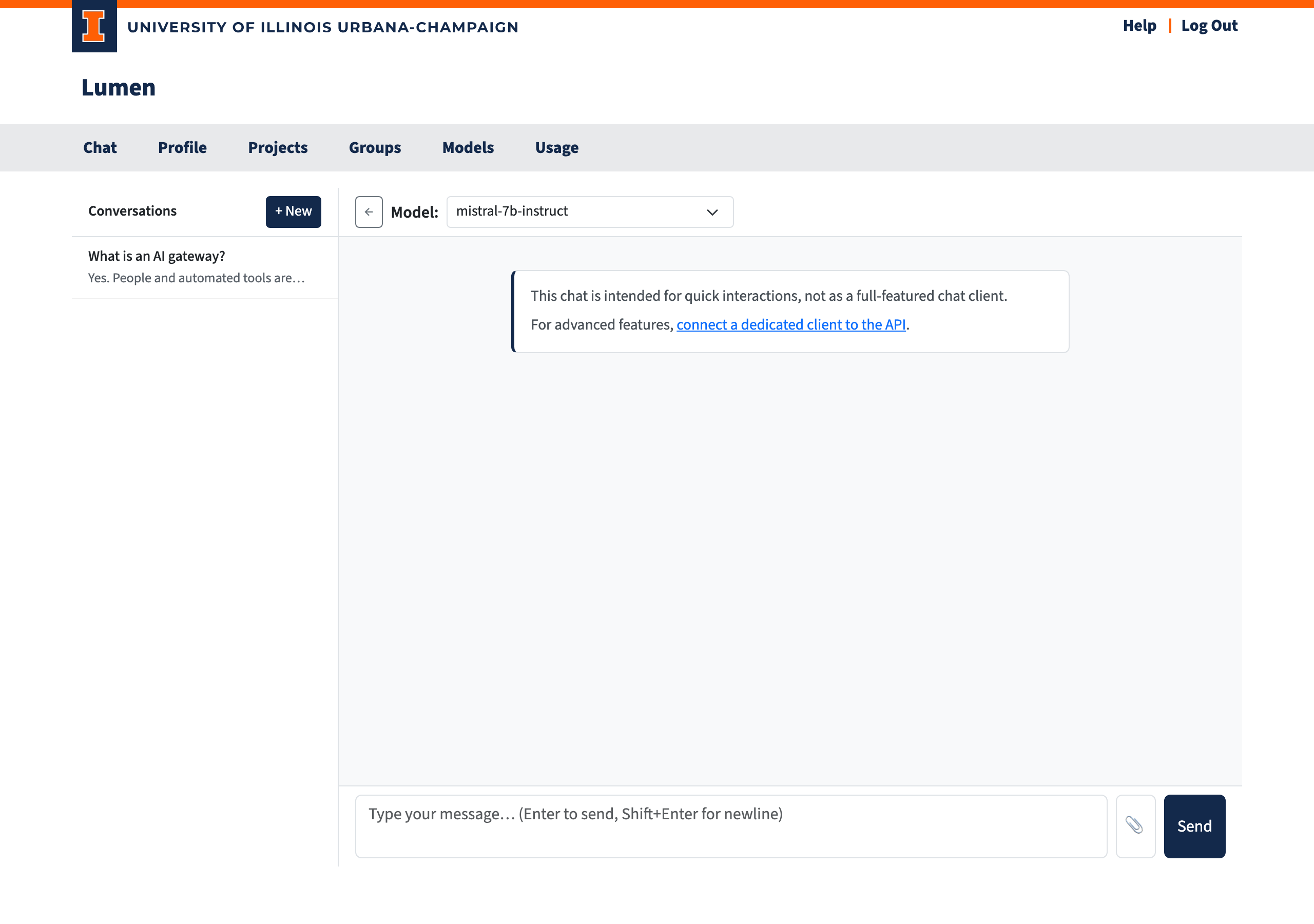
When you start a new conversation, a notice explains that the built-in chat is intended for quick, lightweight interactions rather than a full-featured chat client, and links to the Desktop chat clients section of the Connect guide for using a dedicated client with the API. The notice disappears once you send a message.
Page Layout
- Left sidebar — Lists your conversations. Click any conversation to reload its message history.
- Model selector — At the top of the chat area. Choose which model to send your message to. Models that require acknowledgment show a warning (⚠) if you haven't acknowledged them yet. Models are omitted when your account or project has no coin pool, because acknowledging them would still leave them unusable.
- Chat area — Displays message bubbles. Your messages appear on the right; assistant replies appear on the left.
- Message detail — Each assistant message has an info icon (ⓘ). Click it to see the token counts, response duration, and output speed for that reply.
Conversation Management
- New conversation — Click the + New button in the sidebar.
- Switch conversations — Click any conversation in the sidebar to load its history.
- Remove conversation — Hover over a conversation and click the ✕ button.
- Conversation title — Automatically generated from your first message.
- Conversation storage — Conversations are saved automatically. If you have disabled conversation storage on your profile page, chats still work but are not saved, and the sidebar shows a notice instead of a history.
Sending Messages
- Select a model from the dropdown at the top.
- Type your message in the input area at the bottom.
- Press Enter to send. Hold Shift+Enter to insert a newline without sending.
Streaming and Thinking
Responses stream in character by character as the model generates them. For models that support reasoning, a collapsible Thinking… section appears above the final answer, showing the model's chain-of-thought.
File Attachments
Attach a file to your message in two ways:
- File picker — Click the paperclip (📎) button.
- Drag and drop — Drag a file directly onto the message input bar.
Supported file types:
| Type | Extensions |
|---|---|
| Documents | .txt, .md, .csv, .json, .py, .js, .ts, .html, .css, .xml, .yaml, .yml |
| PDFs | .pdf |
| Images | .png, .jpg, .jpeg, .gif, .webp |
- Images are sent as part of a "see and answer" message, for models that can interpret images.
- Documents are read and prepended to your message text.
- PDFs are parsed and appended as text.
An attachment chip appears above the input while composing. Click ✕ on the chip to remove it before sending.
Markdown and Math
Assistant responses are rendered with full formatting support:
- Markdown — Headers, code blocks, lists, links, tables, and more.
- Math — Inline
$…$and display$$…$$LaTeX expressions rendered with KaTeX. - Code blocks — Dollar signs inside fenced code blocks are preserved and not treated as math.
Sidebar Toggle
On desktop, click the ←/→ arrow button in the header to collapse or expand the conversation sidebar. On mobile, the sidebar opens as an overlay via the hamburger menu.